Training in the cloud with Google Colab
If you don’t have a good computer for training ML models, you use Google Colab to train in the cloud using the pre-made Jupyter notebook at notebook.ipynb, which is designed to be used with Google Colab.
Opening the notebook
To open the notebook in Colab, follow this link.
Note
Most browsers work, but Firefox can be a bit temperamental. This isn’t NAM’s fault; Google Colab just prefers Chrome (unsurprisingly).
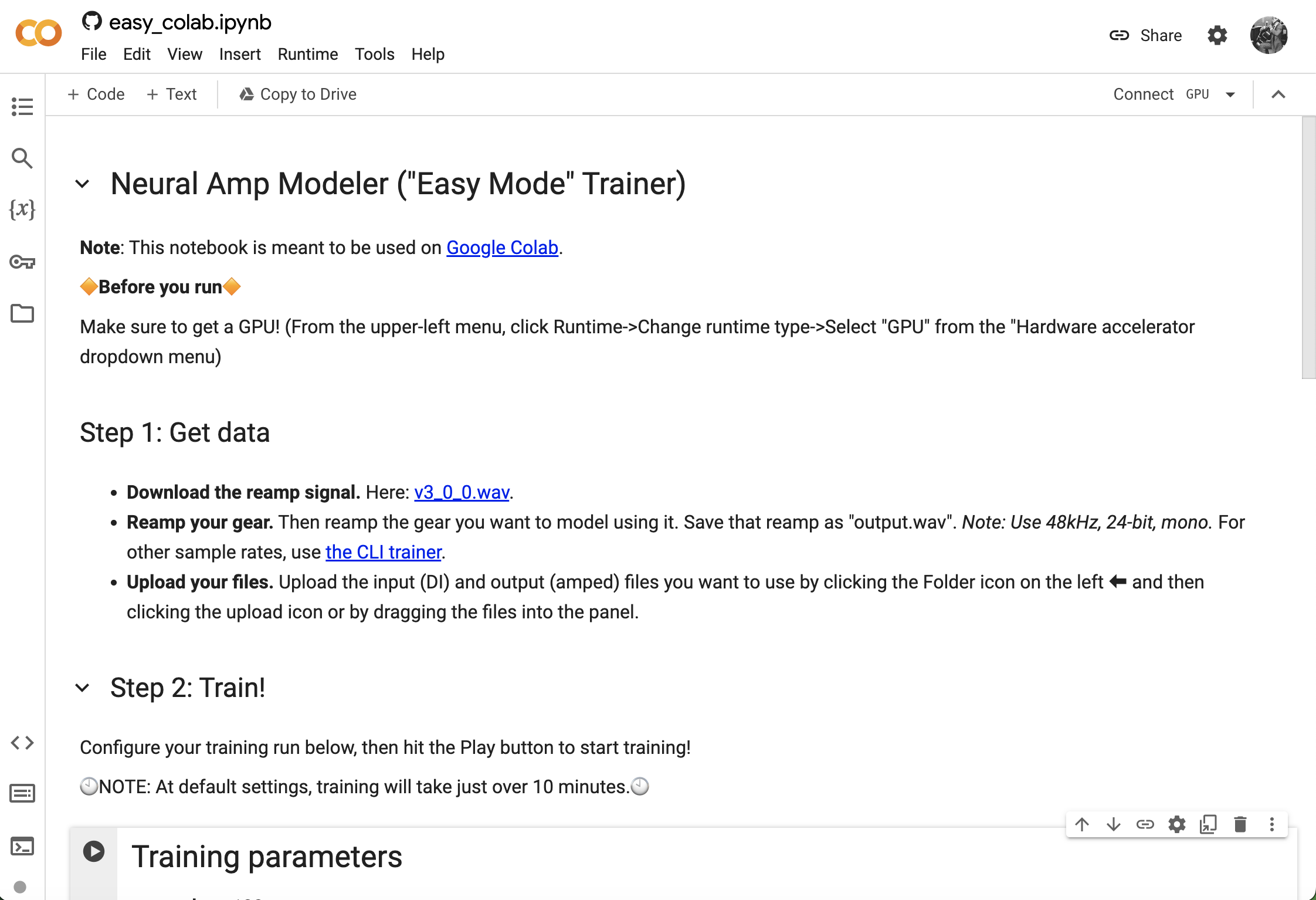
You’ll be met with a screen like this:
Reamping: Getting data for your model
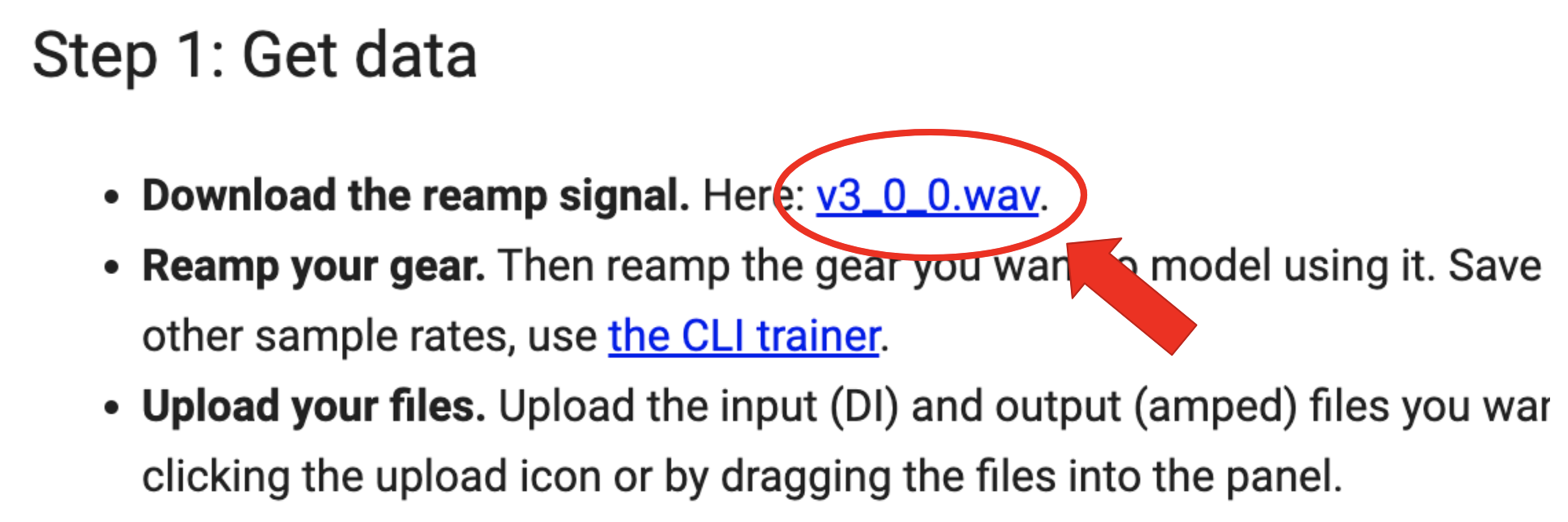
In order to train, you’re going to need data, which means you’re going to need an amp or a pedal you want to model, and you’re going to need to have gear to reamp with it. Start by downloading the standardized test signal here:
If you need help with reamping, others on YouTube have made high-quality tutorials.
Note
You need to make sure that your exported file is the same length as the input file. To help with this, the standardized input files are an exact number of seconds long. If you drop them into a DAW session at 120 BPM, you can snap your guides to the beat and easily get the reamp of the right length.
However, if you want to skip reamping for your first model, you can download these pre-made files:
input.wav, a standardized input file.
output.wav, a reamp of a high-gain tube head.
To upload your data to Colab, click the Folder icon here:
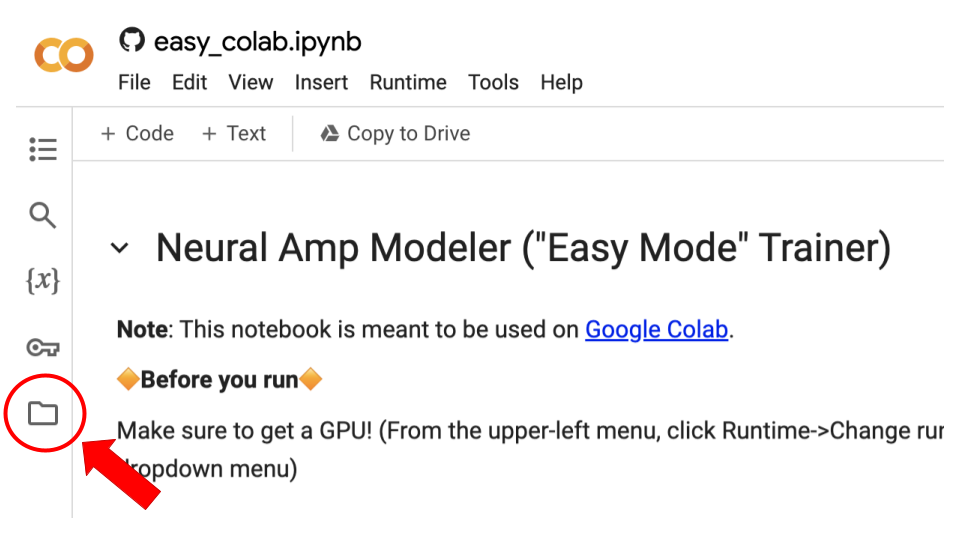
and either drag and drop the files into the panel or select them after clicking the upload button.

Wait for the files to finish uploading before proceeding. If you don’t, then strange errors will happen.
Training
At this point, you can train your model with a single click: just click the Play button and everything will finish in about 10 minutes.

The Colab trainer uses NAM’s A2 configuration. There are a few options below that you can use to control the run.
Here are the options explained:
Training Parameters
* epochs: Number of training epochs. NAM uses validation-set checkpointing and automatically restores the best checkpoint from the entire run after training completes.
* latency_samples: How far the output lags the input due to round-trip latency during reamping, in samples. If not "auto", it must be an integer value for the measured latency.
* ignore_checks: Skips data-quality checks.
User Metadata
* use_metadata: If enabled, the .nam file includes user metadata.
* name: Model name.
* modeled_by: Author name.
* gear_make: Gear manufacturer.
* gear_model: Gear model.
* gear_type: Category of the captured gear.
* tone_type: Category of the reamped tone.
* reamp_send_level: Reamp send calibration level. See the documentation for details.
* reamp_return_level: Reamp return calibration level. See the same documentation for details.
Downloading your model
Once training is done, you can download your model as a .nam file from the file browser:
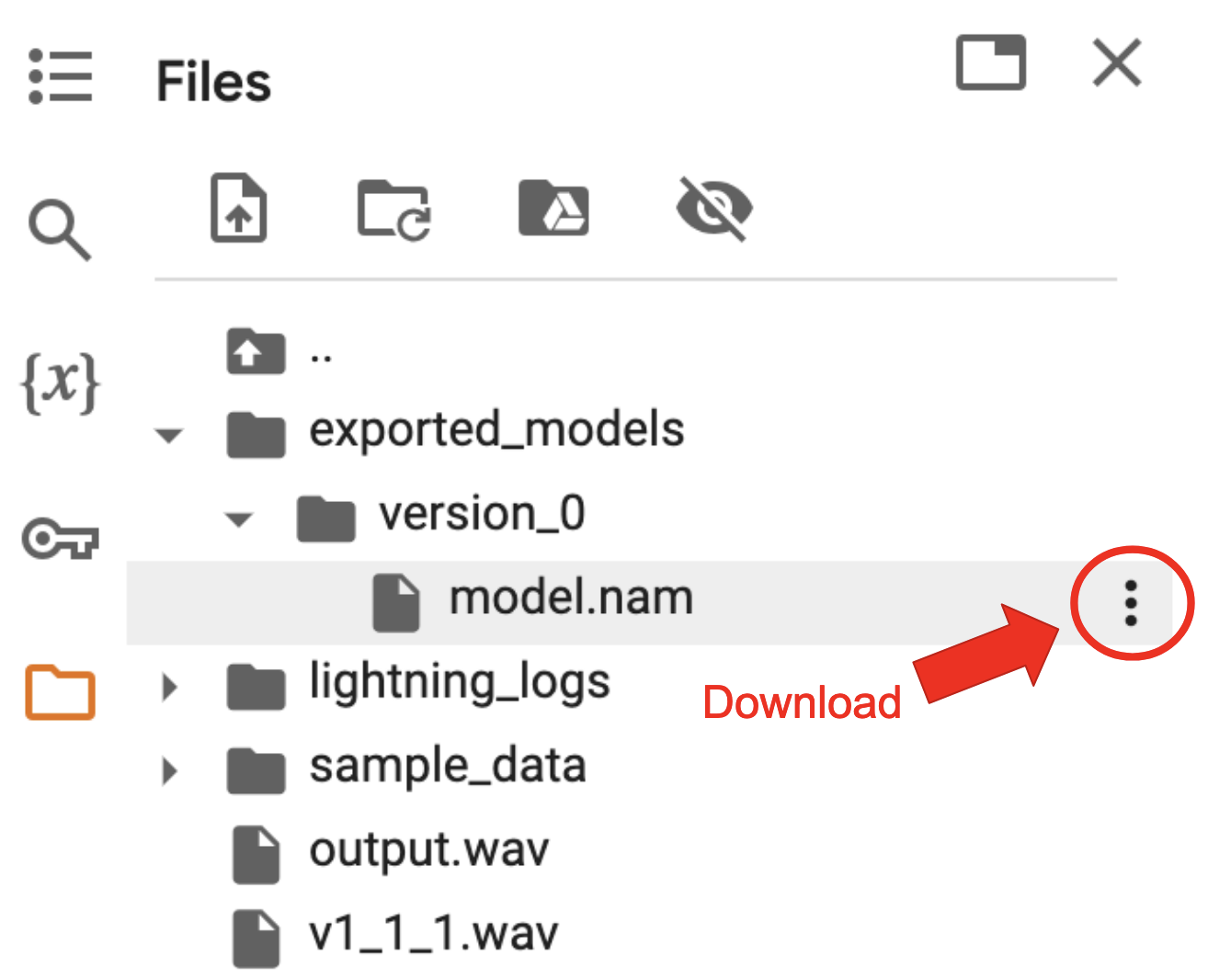
If you don’t see it, you might have to refresh the file browser:

To use it, point the plugin at the file and you’re good to go!